
From a product image to a short ad: a template walkthrough
A product video starts with a clear reference and a focused motion brief. This public template connects one product image to one video node. Here is what the saved workflow contains, how its prompt is structured, and what to check when adapting it.
What is in this saved workflow?
The reference preview presents a silver phone from several angles. The result node contains a short video preview, a detailed motion prompt and saved generation settings. The single edge connects the reference image to that video node; there is no separate storyboard branch in this graph.
2 nodes · 1 connections · Existing reference media
Reference and saved previews
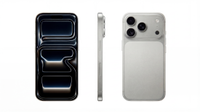
Open the reference preview
Open this saved preview
| Saved model key | doubao-video-2.0 |
|---|---|
| Saved aspect ratio | 16:9 |
| Saved resolution setting | 720P |
| Saved duration setting | 5 seconds |
| Saved reference mode | omni_reference |
These are saved preset values, not the record of a new run. Current model availability, inputs and quotes are shown in the creation tool.
How to adapt the workflow
Prepare the product reference
Start with your own product image. A clean view makes the silhouette, camera arrangement, finish and edges easier to compare. The saved input here is only a small preview, so use a suitable original for your own task.
Separate appearance from motion
Use the reference to communicate the product. Use the video brief to describe camera distance, rotation, lighting changes and the final hero view. Keep the main subject and the requested motion easy to identify.
Inspect settings before generating
The saved video node records doubao-video-2.0, 16:9, 720P, a five-second duration and omni_reference mode. These describe the preset. Select a currently available model and check its supported reference controls and quote in your own project.
Review the saved example, then adapt
Watch the reference preview below. Compare product features through the camera changes rather than judging only the first frame. Revise one part of the brief at a time when preparing a different product.
Prompt logic and a brief to adapt
The saved brief keeps attention on the reference product, uses close detail views and camera movement, and asks for a final hero view. It also constrains distracting objects and recognizable background settings. These are creative instructions rather than a measurement of product fidelity.
The following is a new editorial practice brief, not a copy of the saved prompt and not the prompt used to produce the previews above.
Create a short studio film of the product in my reference. Open on a close detail, move into a slow three-quarter reveal, and finish with a steady front view. Keep the same product design and finish throughout. Use a simple dark backdrop and controlled light; leave out additional products and text.
What to check in your own result
- Compare the front, side and back features with the reference, especially the camera arrangement, buttons and edges.
- Watch for geometry changes during rotation, sudden cuts, floating parts and reflections that obscure important detail.
- Check the full exported video for text, logos, unwanted additions and the framing required by your intended placement.
What the example establishes
This article reviews an existing public reference template; it does not report a new generation on Omni AiLab. The inspected preview is about 5.06 seconds at 854 × 480. The saved 720P setting is a separate field and does not make this preview an original-resolution deliverable. The snapshot does not establish the original run date, seed, billed amount, latency or success rate.
Source and scope
This walkthrough reviews Tech Product Ad, a TapNow reference template already included in the public canvas library. The library entry was reconstructed from visible template content; it is not an original project export. Source media are displayed from their existing public preview links.
To find the workflow, open a canvas, choose Templates and search for Tech Product Ad. Replace the reference with your own material before preparing a task. Template source platform: TapNow.
Prepare your next step
Read the complete prompt guide or explore the creation tool. When you are ready to generate, sign in and review the selected model, supported settings and quote.